Skip to content

Editor Setup

Because Typewriting Class is plain TypeScript, you already get autocomplete, go-to-definition, and type checking out of the box in any editor with TypeScript support. This guide covers the optional VS Code extension that adds CSS hover previews, along with recommended project settings for the smoothest experience.

VS Code extension: typewritingclass-devtools

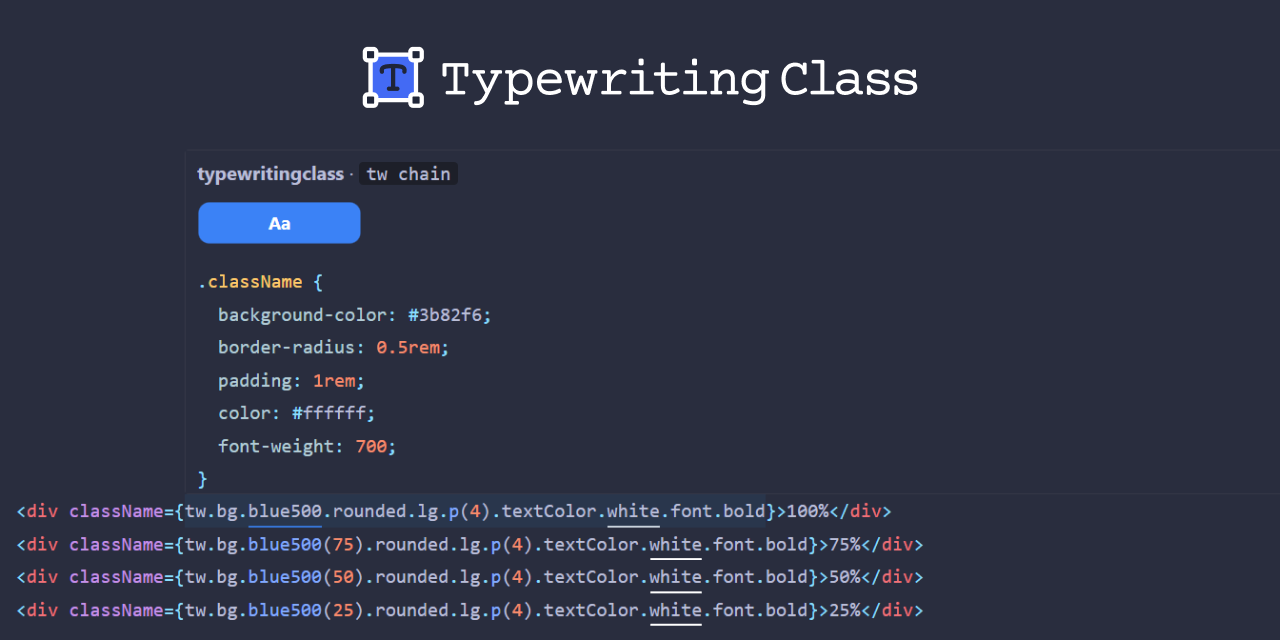
The typewritingclass-devtools extension adds inline CSS previews directly in your editor. Hover over any utility call, cx() composition, or when() modifier to see the exact CSS that will be generated.

Features

  • Utility hover preview — hover over a call like p(6) or bg(blue[500]) to see the generated CSS declaration in a tooltip.
  • cx() hover preview — hover over a cx() or dcx() call to see the combined CSS for all composed rules, including the class name structure.
  • when() hover preview — hover over a when(hover)(bg(blue[600])) expression to see the full CSS rule with its selector or media query wrapper.
  • Multi-line support — the extension correctly parses cx() calls that span multiple lines, gathering all arguments to produce a complete preview.

Example

Given this code:

const card = cx(
p(6),
bg(white),
rounded('lg'),
when(hover)(shadow(xl)),
)

Hovering over cx shows:

/* typewritingclass: cx(...) */
.cls1 { padding: 1.5rem; }
.cls2 { background-color: #ffffff; }
.cls3 { border-radius: 0.5rem; }
.cls4:hover {
box-shadow: 0 20px 25px -5px rgb(0 0 0 / 0.1),
0 8px 10px -6px rgb(0 0 0 / 0.1);
}

Hovering over a single utility like p(6) shows:

/* typewritingclass: p(6) */
padding: 1.5rem;

Install from the marketplace

Search for typewritingclass-devtools in the VS Code Extensions sidebar, or install it from the command line:

Terminal window
code --install-extension typewritingclass.typewritingclass-devtools

Build from source

If you are working on the typewritingclass monorepo itself, you can build and install the extension locally:

Terminal window
cd packages/typewritingclass-devtools
bun install
bun run build

Then use the Extensions: Install from VSIX command in VS Code to install the generated .vsix file.

Configuration

The extension respects the following VS Code setting:

SettingTypeDefaultDescription
typewritingclass.enableHoverPreviewbooleantrueEnable or disable the CSS hover preview tooltips.

You can toggle this in your workspace or user settings:

.vscode/settings.json
{
"typewritingclass.enableHoverPreview": true
}

TypeScript configuration

Typewriting Class requires no special TypeScript configuration. All utilities, modifiers, and theme tokens are fully typed with standard TypeScript, so autocompletion and type checking work out of the box.

That said, the following tsconfig.json settings are recommended for the best experience:

{
"compilerOptions": {
"strict": true,
"moduleResolution": "bundler",
"target": "ES2022",
"module": "ESNext"
}
}

Why strict: true matters

With strict: true, TypeScript enables several flags that improve type inference for typewritingclass:

  • strictNullChecks — prevents accidentally passing undefined to utilities that require a value.
  • noImplicitAny — ensures that utility arguments are always typed, catching errors like passing an untyped variable to bg().
  • strictFunctionTypes — provides correct variance checking for modifier composition with when().

Without strict mode, some incorrect usage patterns may compile without errors but produce unexpected CSS at build time. Strict mode ensures the type system catches these issues before the compiler runs.

Module resolution

Use "moduleResolution": "bundler" (TypeScript 5.0+) or "moduleResolution": "node16" to correctly resolve the typewritingclass/theme/* sub-path exports. The older "node" resolution mode may not resolve sub-path imports correctly.

Path aliases (optional)

If you prefer shorter imports, you can set up path aliases in tsconfig.json:

{
"compilerOptions": {
"paths": {
"@/styles/*": ["./src/styles/*"]
}
}
}

Then create a barrel file for commonly used tokens:

src/styles/tokens.ts
export { white, black, slate, blue, red, green } from 'typewritingclass/theme/colors'
export { sm, md, lg, xl } from 'typewritingclass/theme/shadows'
export { sm as smRadius, md as mdRadius, lg as lgRadius } from 'typewritingclass/theme/borders'
src/components/Card.tsx
import { cx, p, bg, rounded, shadow } from 'typewritingclass'
import { white, lg, lgRadius } from '@/styles/tokens'
const card = cx(p(6), bg(white), rounded(lgRadius), shadow(lg))

ESLint

Typewriting Class does not require a dedicated ESLint plugin. Since every utility is a regular TypeScript function, standard ESLint rules and TypeScript-aware linting (via @typescript-eslint) already cover all common cases:

  • Unused imports@typescript-eslint/no-unused-vars catches unused utility or token imports.
  • Missing imports — your editor’s auto-import feature handles adding import { p, bg } from 'typewritingclass' as you type.
  • Type errors@typescript-eslint/no-unsafe-argument prevents passing values of the wrong type to utility functions when strict mode is enabled.

No additional lint rules, plugins, or configuration are needed.

Optional: enforce import ordering

If you want to keep your Typewriting Class imports visually organized, you can configure ESLint’s import/order rule (from eslint-plugin-import) to group them:

{
"rules": {
"import/order": ["warn", {
"groups": ["builtin", "external", "internal"],
"pathGroups": [
{
"pattern": "typewritingclass",
"group": "external",
"position": "after"
},
{
"pattern": "typewritingclass/**",
"group": "external",
"position": "after"
}
],
"newlines-between": "always"
}]
}
}

This keeps Typewriting Class imports grouped together and separated from other dependencies:

import React from 'react'
import { cx, p, bg, when, hover } from 'typewritingclass'
import { white, blue } from 'typewritingclass/theme/colors'
import { Card } from './Card'

Prettier

No Prettier configuration is needed. Typewriting Class code is standard TypeScript, so Prettier formats it correctly with its default settings.

Other editors

Typewriting Class works in any editor with TypeScript language server support. The hover preview extension is currently only available for VS Code, but the core developer experience — autocomplete, type checking, go-to-definition, and inline documentation — works everywhere the TypeScript language server runs:

  • Neovim (via nvim-lspconfig with ts_ls or typescript-language-server)
  • WebStorm / IntelliJ (built-in TypeScript support)
  • Sublime Text (via the LSP package with typescript-language-server)
  • Helix (built-in LSP support)
  • Zed (built-in TypeScript support)

Since every utility, modifier, and theme token has JSDoc annotations, you get rich inline documentation in the hover tooltip of any LSP-compatible editor — even without the dedicated VS Code extension.

Next steps

Your editor is now set up for a productive Typewriting Class workflow. Continue exploring: